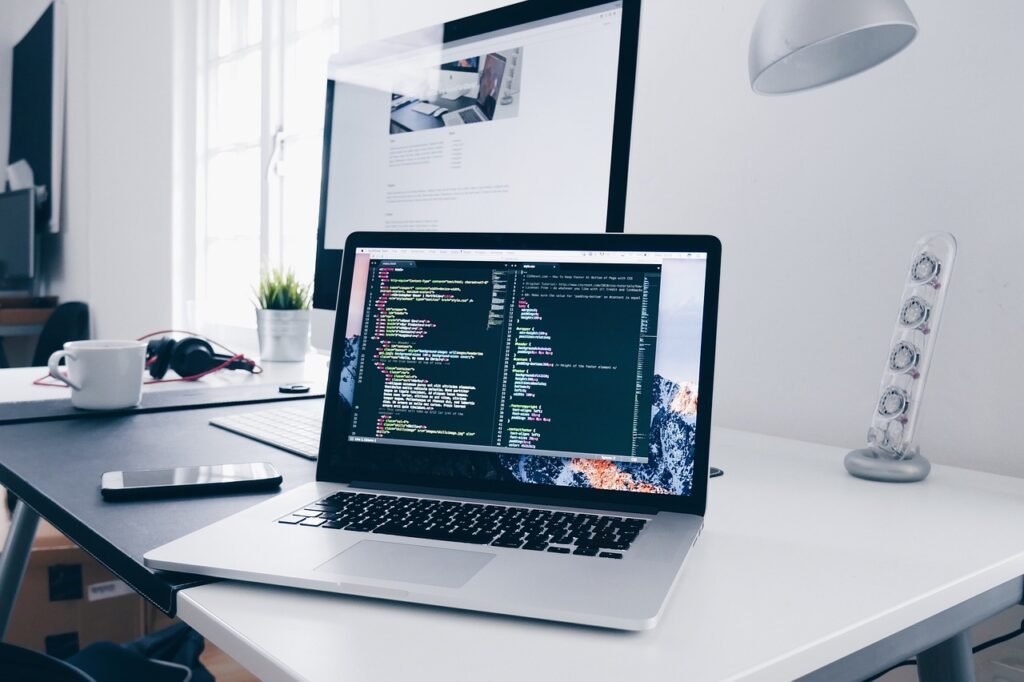
Getting your display settings right — brightness calibrated for the room, colors consistent across monitors, no unnecessary eye strain at the end of a long session — is about more than comfort. It’s about creating conditions where you can do focused work for longer without fatigue getting in the way. It’s the same logic behind ergonomic chairs and mechanical keyboards: the environment shapes the work.
Once the display layer is sorted, the next question is what software to pair with it. This guide covers the tools that complement a well-tuned display setup — for both productive work and creative output — in 2026.
Display Management: The Foundation
Brightness control is the starting point, but a complete display management setup goes further. f.lux and Windows Night Light handle color temperature shifting for evening use — reducing blue light as the day progresses helps significantly with sleep quality for people who work late. DisplayFusion is worth knowing for multi-monitor setups, handling taskbar management, window positioning, and display profiles across complex configurations.
For color-critical creative work — photo editing, video grading, design — display calibration matters more than brightness alone. SpyderX and X-Rite i1Display are the hardware calibrators worth using if you’re making professional color decisions on screen. Without calibration, the colors you’re approving may look noticeably different to whoever views your work on a different display.
Visual Editing: When Background Matters
Creative work on a well-calibrated display often involves editing images where the background is either a distraction, wrong for the context, or needs to be removed entirely. Product images need clean white or transparent backgrounds. Profile photos need backgrounds that match a brand or template. Marketing graphics need subjects isolated and placed in specific visual contexts.
PicsArt’s AI background changer handles this workflow cleanly. Upload an image, the AI separates the subject from the background with accuracy that extends to fine edges like hair and soft textures, and you’re placed in an editing environment where you can swap in a new background — solid color, custom image, or one of many preset environments — or export with transparency for use in other applications. On a properly calibrated display, the color accuracy of the result is significantly more useful: what you’re approving is closer to what will appear on your export or print.
For more controlled studio photography editing, Adobe Lightroom’s Select Subject and Masking tools offer the most precise control. GIMP provides the free, open-source alternative with full manual masking capability for users who need it.
Meeting Productivity: The Often-Neglected Software Layer
Remote and hybrid work means a significant portion of the workday happens on video calls, looking at the same calibrated display that’s used for everything else. The quality of those meetings — how well decisions are documented, how clearly action items are tracked — has a direct impact on what gets done between them.
Krisp’s AI note taker solves the documentation problem that affects most video calls: what was decided, by whom, and what needs to happen next. It runs in the background, transcribes the conversation, and produces a structured summary you can share with participants afterward. For users who spend significant time on calls — whether for client work, team collaboration, or management responsibilities — it removes the choice between participating fully and capturing the content of the meeting.
Krisp is also known for its noise cancellation. On a home office setup where the environment isn’t acoustically controlled, noise cancellation makes a meaningful difference both to how you sound to others and to the quality of automatic transcription. The two features work together: cleaner audio input produces more accurate meeting notes.
Focus and Deep Work Tools
A well-calibrated display and good software don’t automatically produce focus. For extended sessions of concentrated work, a few additional tools help. Freedom and Cold Turkey both handle website and app blocking with a reliability that willpower alone doesn’t match. Brain.fm and Endel produce AI-generated audio specifically designed to support concentration — more effective for many people than music or ambient sound during cognitively demanding work.
The Pomodoro technique — 25 minutes of focused work, 5-minute break — has genuinely good research support for maintaining concentration over long sessions. Any simple timer works, but dedicated apps like Pomotroid or Forest add light accountability that helps some people stick to the intervals.
System Performance
Display management software runs continuously in the background, and a well-managed system keeps that overhead from affecting performance. A few practices keep things running smoothly: audit startup programs periodically and disable anything that doesn’t need to run from boot, keep graphics drivers current (display-related software depends heavily on driver stability), and use a RAM monitoring tool to watch for memory creep during long sessions with multiple applications open.
For multi-monitor setups specifically, making sure your GPU is handling the workload across all displays correctly — rather than relying on integrated graphics for secondary monitors — makes a noticeable difference in overall system responsiveness.
Building the Right Stack
The pattern worth following is: solve the physical environment first (display calibration, ergonomics, lighting), then add the software layer that directly supports your work (visual editing tools, meeting tools, focus tools), and add complexity only when a specific problem justifies it. A PC setup that’s optimized from the display down to the software produces a working environment where the tools disappear and the work stays in focus.